
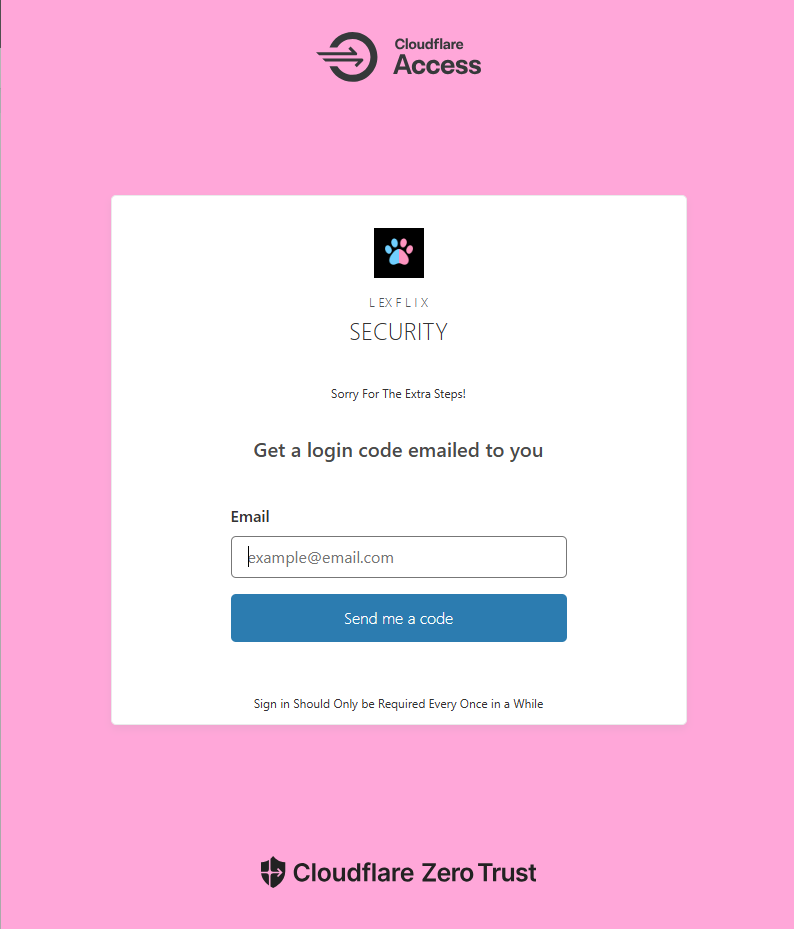
TWO-STEP VERIFICATION
There is a chance you will have to use your email for a one time passcode. This should only be required every once in a while.

LEXFLIX
LEXFLIX is your personal streaming service. It lets you watch all the movies, shows, and music that have been added to your home library. You can log in from your computer, phone, or TV and play anything you have access to, just like you would with Netflix or Hulu.
Go to the Jellyfin website, phone or TV app.
Log in with your username and password.
Browse or search for any movie, or show
Click play to start watching!
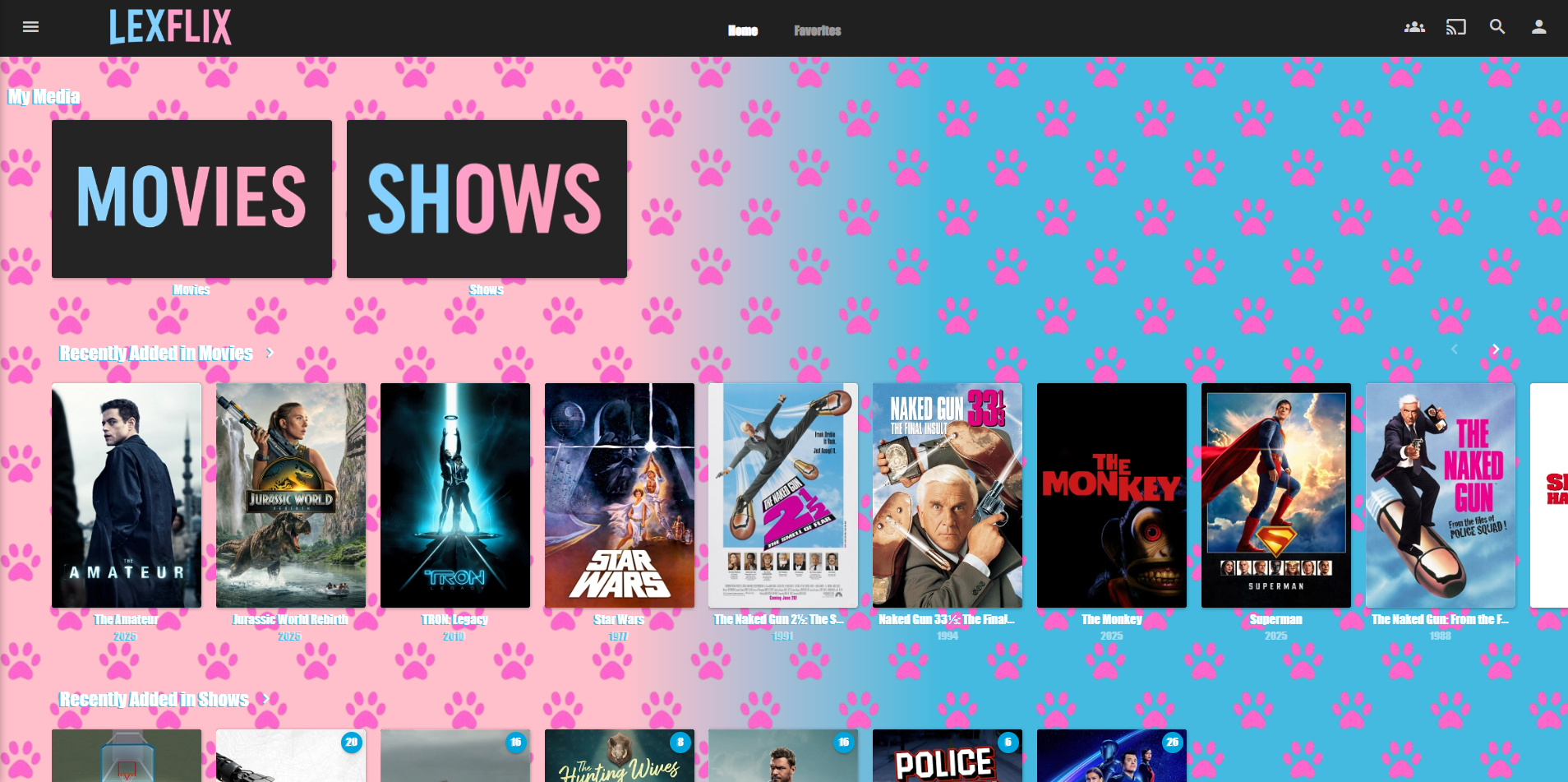

Adding LEXFLIX to your TV
Step 1:
Open your TV’s app store and search for Jellyfin. Install the app.
Step 2:
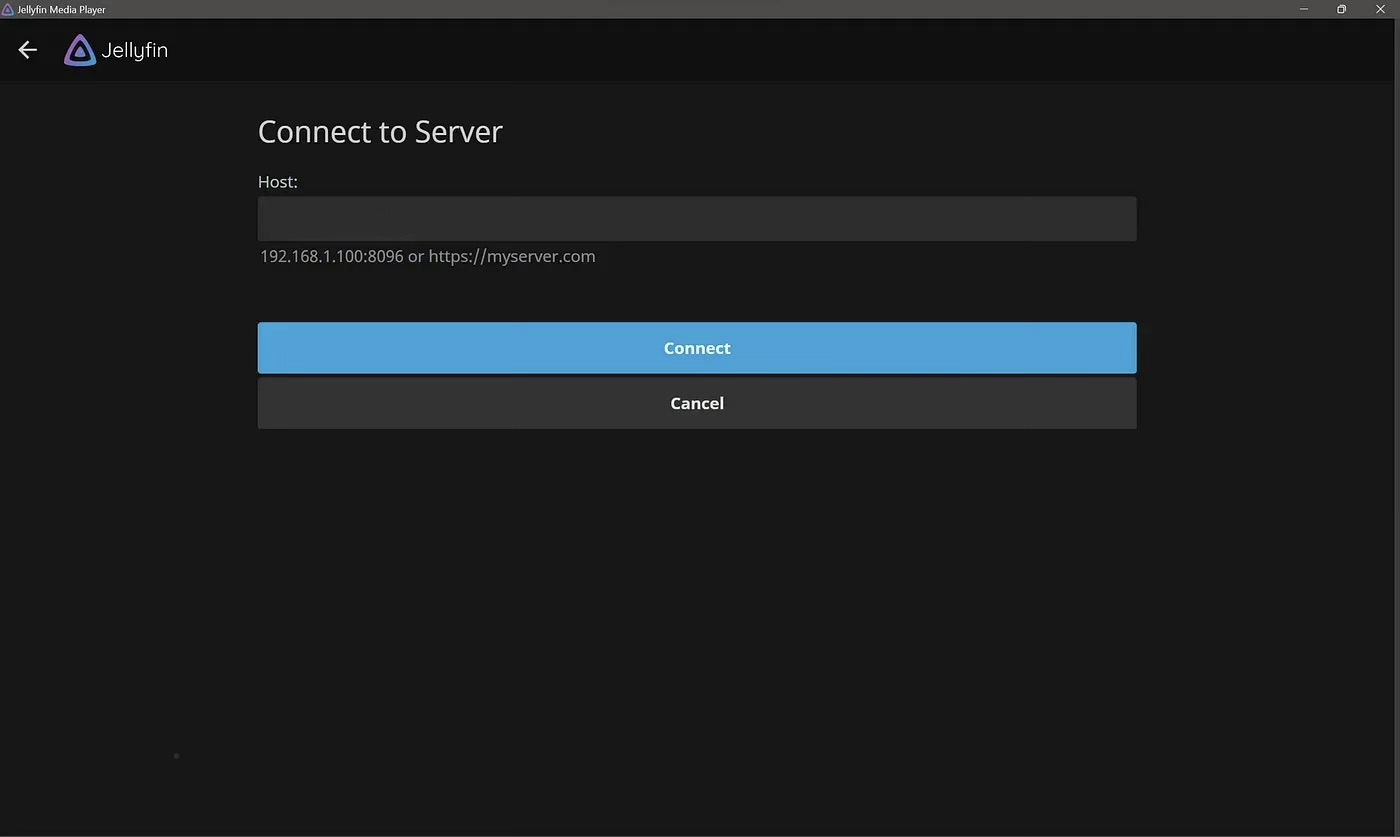 Open the Jellyfin app. When it asks for a server address, enter:
https://jellyfin.lexieandcole.cc
Step 3:
Log in with your username and password.
Step 4:
Browse or search for any movie or show, then press play to start watching!

Adding LEXFLIX to your Phone
Step 1:
Open the App Store on iPhone or Google Play Store on Android. Search for Jellyfin and install the app.
Step 2:
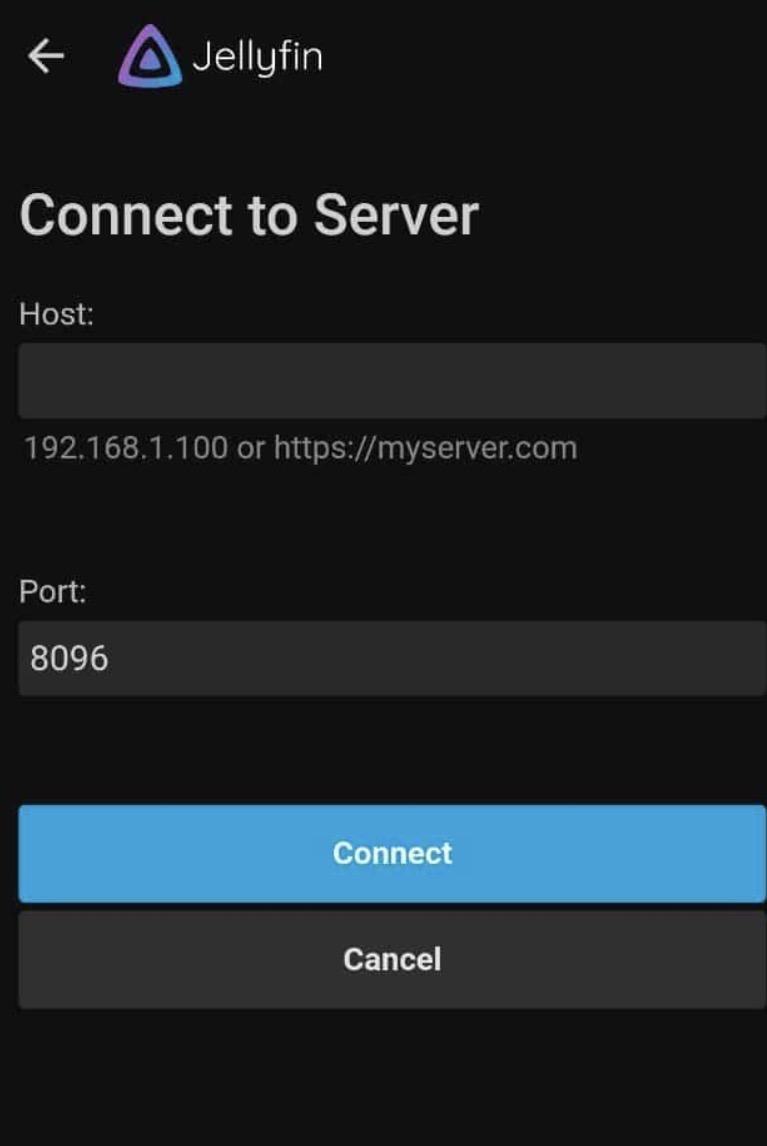 Open the Jellyfin app. You can leave the port number the same. When prompted for a server address, enter:
https://jellyfin.lexieandcole.cc
Step 3:
Log in with your username and password.
Step 4:
Tap any movie, show, or album to start watching or listening instantly.

LexSeek
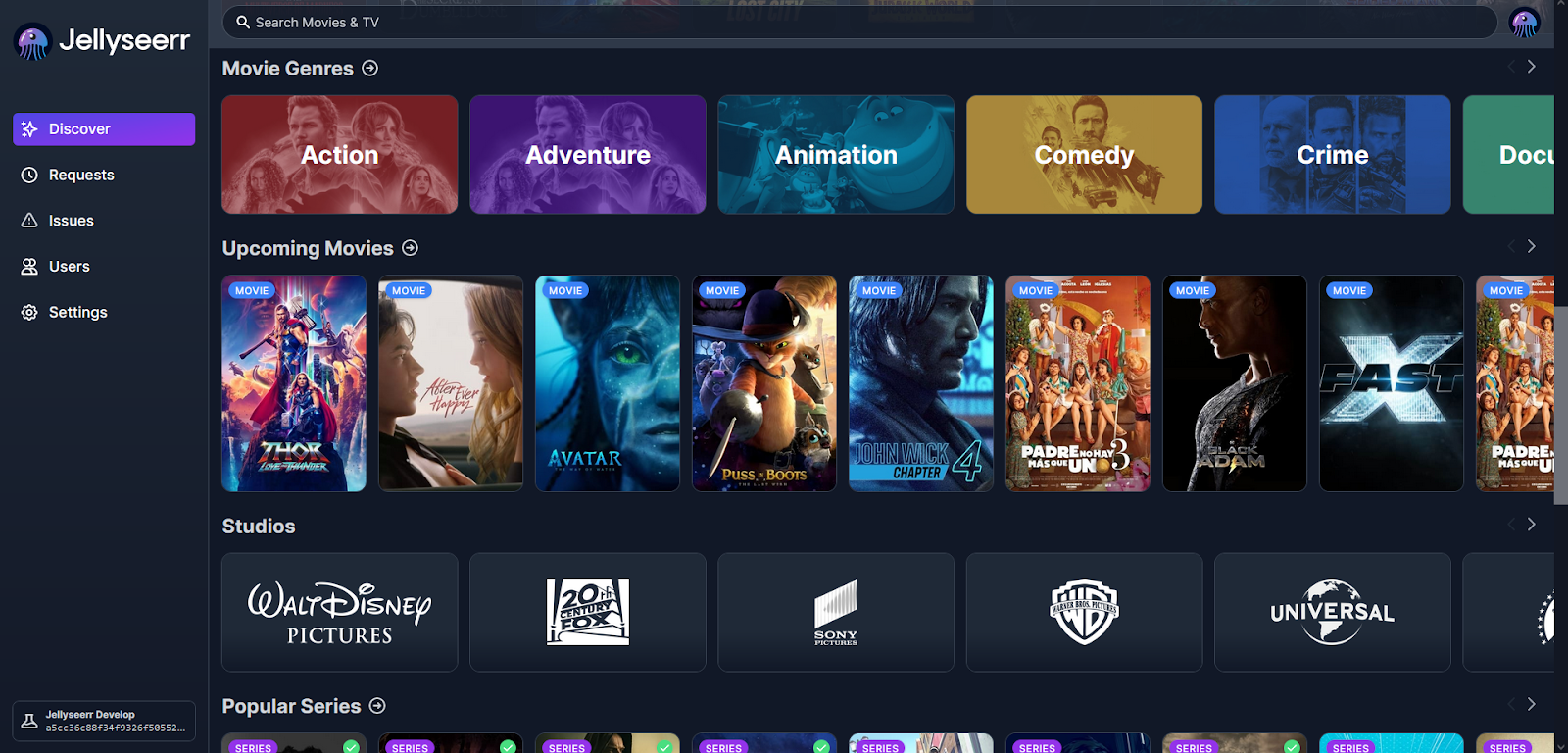
LexSeek is the place where you can ask for new movies or shows to be added to the library. If there’s something you want to watch that isn’t there yet, just log into LexSeek, search for it, and request it. You’ll get a notification or see when it’s ready to watch in LEXFLIX.
Adding LEXFLIX to Your iPhone Home Screen
Step 1:
Open Safari on your iPhone and go to:https://lexieandcole.cc
Step 2:
Tap the Share button (the square with an arrow pointing up) at the bottom of the screen.
Step 3:
Scroll down and tap Add to Home Screen.
Step 4:
You can rename the shortcut to LEXFLIX if you like, then tap Add in the top-right corner.
Step 5:
You’ll now see the LEXFLIX icon on your Home Screen. Tap it any time to open the site like an app.

Discord
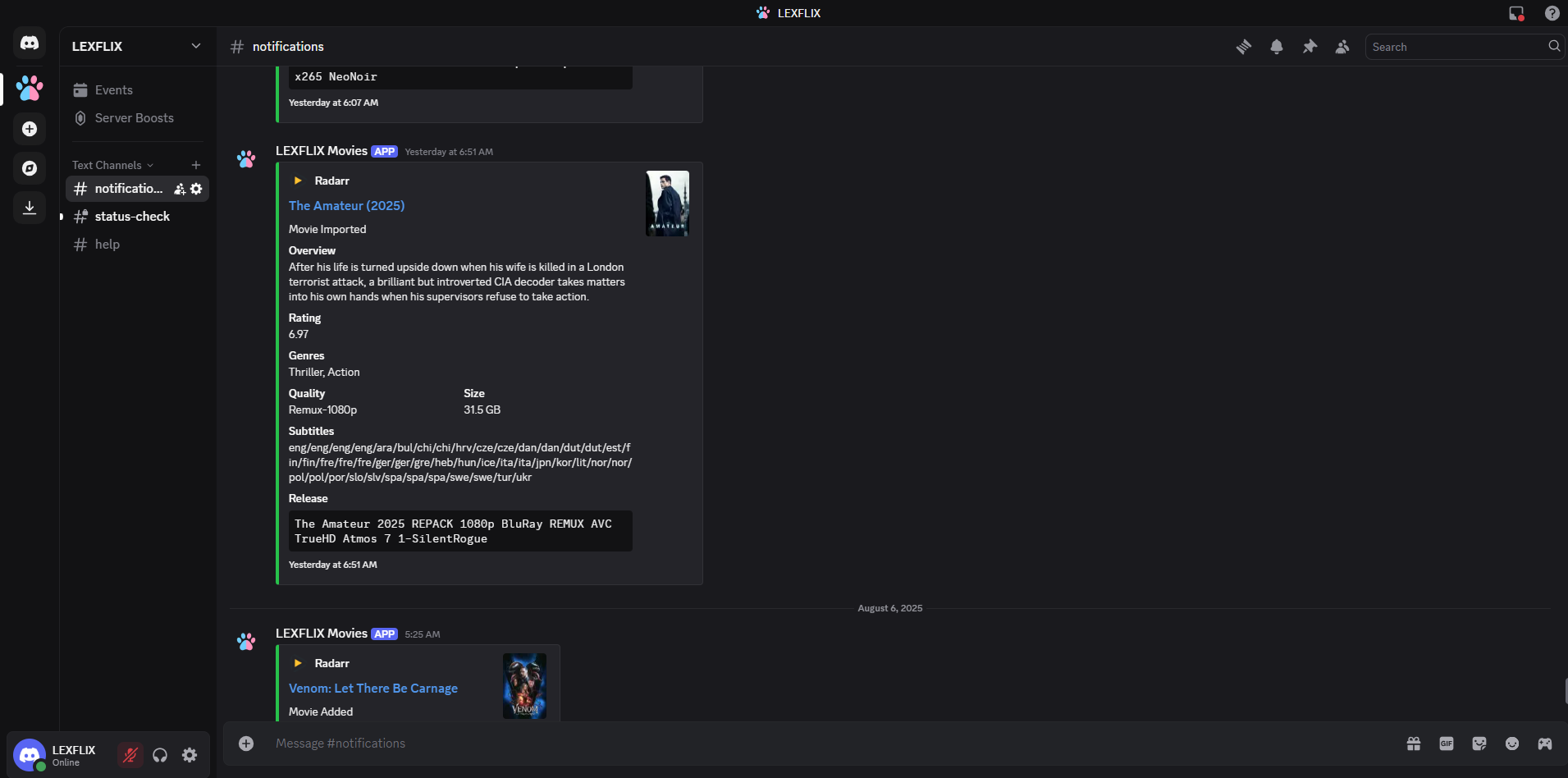
Discord is the app that will send you important notifications about your media library. For example, you might get a message when a movie you requested is available or if there’s something you need to know about your access. Just install the app on your phone to get these updates and click the link below to join the server:

AudioBookShelf
Audiobookshelf is the app used to access all of your audiobooks and ebooks in one place. You can stream content directly or download it for offline listening/reading on your phone, tablet, or computer.
To get started, download any app from the App Store (or Google Play) that supports Audiobookshelf. There are multiple apps available, so you can choose the one you prefer as long as it lists Audiobookshelf compatibility.
Once installed, open the app and add a new server using the following address:
Server URL: https://books.lexieandcole.cc
After entering the server, log in using the username and password that were provided to you. Once logged in, your library will appear and you can begin browsing, streaming, or downloading your content.
If you prefer, you can also access Audiobookshelf directly in your browser by visiting the link on the landing page.

Shelfarr
Shelfarr is the app used to request new books and audiobooks to be added to your library. It allows you to search for content, submit requests, and track their status until they become available in Audiobookshelf.
To get started, simply open Shelfarr in your web browser using the link below. No app installation is required.
Website: https://shelfarr.lexieandcole.cc
Log in using the username and password that were provided to you. Once logged in, you can search for books or audiobooks and submit requests with just a few clicks.
After submitting a request, it will be reviewed and processed. Once approved and downloaded, the content will automatically appear in your Audiobookshelf library.
You can return to Shelfarr at any time to check the status of your requests or submit new ones.